Showing posts with label Model Store. Show all posts

Monday, 4 January 2016

AX7 Application Code Store (ModelStore in AX2012)

In different versions of Dynamics AX, application code is stored at different places and in different formats. Table below summaries this for last few versions.


Pre-AX2012
AX2012
AX7
RTM
R2-R3
Location
File System
Database - With Business Data
Database - Separate From Business Data
File System
Format
Proprietary Format
Tables
Tables
XML Files

In AX7 Microsoft has not only changed the way application code is stored but also how it is grouped. Application code, that should stay together and is distributed/compiled as a unit, is called a Package.

Location:
In AX7 the application code is saved in file system in a directory and is called PackageDirectory. The location of directory (along with other settings) is saved in a web.config file. Why web.config? Because the AX7 AOS is implemented as ASP.NET web application running on an IIS.

In IIS right click on the site "AOSWebApplication" and click on Explore as shown below.


In the folder, find web.config, open it with notepad and search for "Aos.PackageDirectory". This will have the location of application directory.


In this instance we can see that application code is located in C:\Packages. This file also contains the information of business database location.

Folder Structure:
Following diagram highlights the structure of package directory in AX7.


  • Application code consists of many packages including the standard ones that Microsoft shipped (ApplicationFoundation, ApplicationPlatform, ApplicationSuite, Calendar etc) and any custom packages. 
  • In individual package folder, a folder named "Descriptor" is present. This holds the information of the package, the packages it references and the modes that are part of this package. The file is in XML format.
  • Each package consists of one or more models (Model 1, Model 2...Model n). 
  • In the model folder (Model 1 in the above screenshot) there is a folder for each AX object type (AxClass, AxEDT, AxTable etc).
  • The information (code etc) for individual objects is stored in a XML file (shown from FleetManagment package in the above screenshot).

This posting is provided "AS IS" with no warranties. Use code at your own risk.

Monday, 26 August 2013

Model store deployment using batch files

One important step of AX development is deploying code to production. In AX2012 it is recommended by Microsoft to do so by import of model store. The frequency of this task varies from customer to customer. As we use agile development methodology in our organisation so we deploy code to production frequently.

The deployment cycle is weekly/bi-weekly depending on the requirement/urgency/severity of any bugs discovered and fixed etc. With this frequency we decided to semi-automate the process so that the person performing the task don't have to manually issue the commands and make the whole process smooth. Link to the scripts are at the end of the post.

The folder contains the following files


The process consists of 7 steps, two configuration files and two folders containing utility batch files. Lets look at them one by one.

AOSClientRegFiles:
The folder contains the following windows registry files

The first file changes the AOS configuration to a configuration named "Maintenance" and second one changes back to Original. The next two files do the same thing for the client configuration. This is done by merging these files in windows registry. Step 3 & 5 use these files.

StartStopBatch:
This folder contains the files that either starts or stops a windows service on a server remotely.

Step 1 & 6 uses these files.

cAOSServerConfig.txt:
This file contain the details of the services that needs to be stopped/started as part of the import process. The file format is

 1:AX6AOS1:AOS60$01  
 2:AX6AOS2:AOS60$01  
 3:AX6AOS3:AOS60$01  

Each server is on a new line. The file uses : as delimiter. The first field is used for ordering only. The second field is Server Name and the third is Service Name. These don't need to be AOS services only. In fact any service can be stopped/started.

cImportExportConfig.txt:
This file contains the settings for the import process. The contents of these files are

 AOSNAME:AxTest  
 DATABASESERVER:SQL2008\SQL2008  
 DATABASENAME:AxaptaDB  
 IMPORTMODELSTOREFILENAME:AX6AOS01.axmodelstore  
 EXPORTMODELSTOREFILENAME1:AX6AOS1_AxTest  
 EXPORTMODELSTOREFILENAME2:.axmodelstore  
 TEMPSCHEMANAME:AXTempSchema  

Step 0 & 2 uses this file.

Step 0:
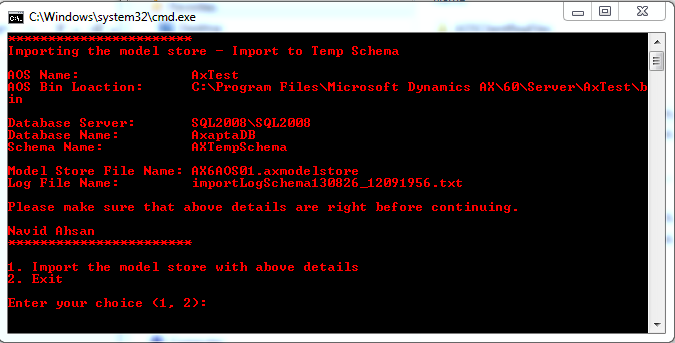
This step import the model store in a temporary schema. The reason this step is zero is that it can be performed before the actual import task is carried out. The script reads the setting file cImportExportConfig, presents the user all the details and asks to enter the choice as shown below


If the user enters 1. The batch file then imports the model store into the temporary schema. A log file is generated in the bin folder of the AOS.

Step 1:
This step stops all the services specified in the file cAOSServerConfig as shown below


The scripts stops each service independently and in parallel. The script stops the service and then waits until the service is stopped after which it displays the confirmation. In above case if 4 is entered, 3 different batch process runs each stopping the individual service.

Step 2:
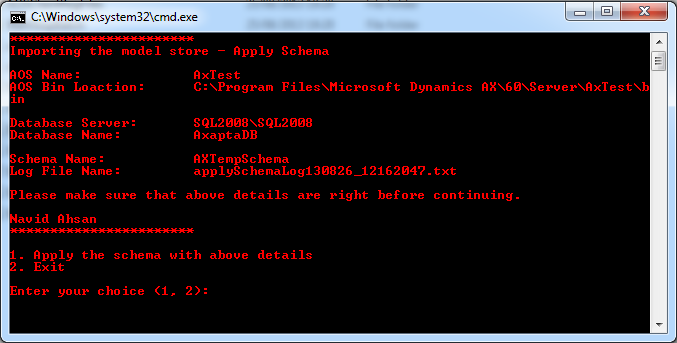
This step applies the model store to the actual schema and in the process creates a log file in bin folder of the AOS as shown below


Step 3:
This step changes the AOS configuration to maintenance. The same is done for the Client configuration. These configuration should already exist. If the configuration names are different than these can be changed in the files by using notepad.

Step 4:
This step just start the AX Client to perform additional step (like synchronisation, report deployment etc.). These step are not automated but can be done.

Step 5:
 This step changes the AOS and Client configuration back to original.

Step 6:
This step uses the file cAOSServerConfig  and starts the services as shown below.

As with the stop script, this will start the services in parallel and wait for the service to start before displaying the confirmation.

Note: The scripts should be tested in a test environment before using them in production. The user should have all the necessary permission to perform different task remotely on a server.


This posting is provided "AS IS" with no warranties. Use code at your own risk.